I'm a participant in the Amazon Services LLC Associates Program, an affiliate advertising program designed to provide a means for me to earn fees by linking to Amazon.com and affiliated sites.
If you’ve ever printed “borderless” and thought, “Why did it zoom in and cut off the edges?”, you’re seeing a feature, not a failure. Our Borderless Printing Explained guide will help you with this.
Here’s the verdict up front:
- Borderless printing almost always crops your image on purpose.
- Printers do this because paper size isn’t perfectly consistent and they need “bleed” to avoid white slivers.
- If you want zero cropping, you usually need a small border or a different layout approach.
Once you understand the mechanics, borderless becomes predictable instead of annoying.
Feature | |||||
|---|---|---|---|---|---|
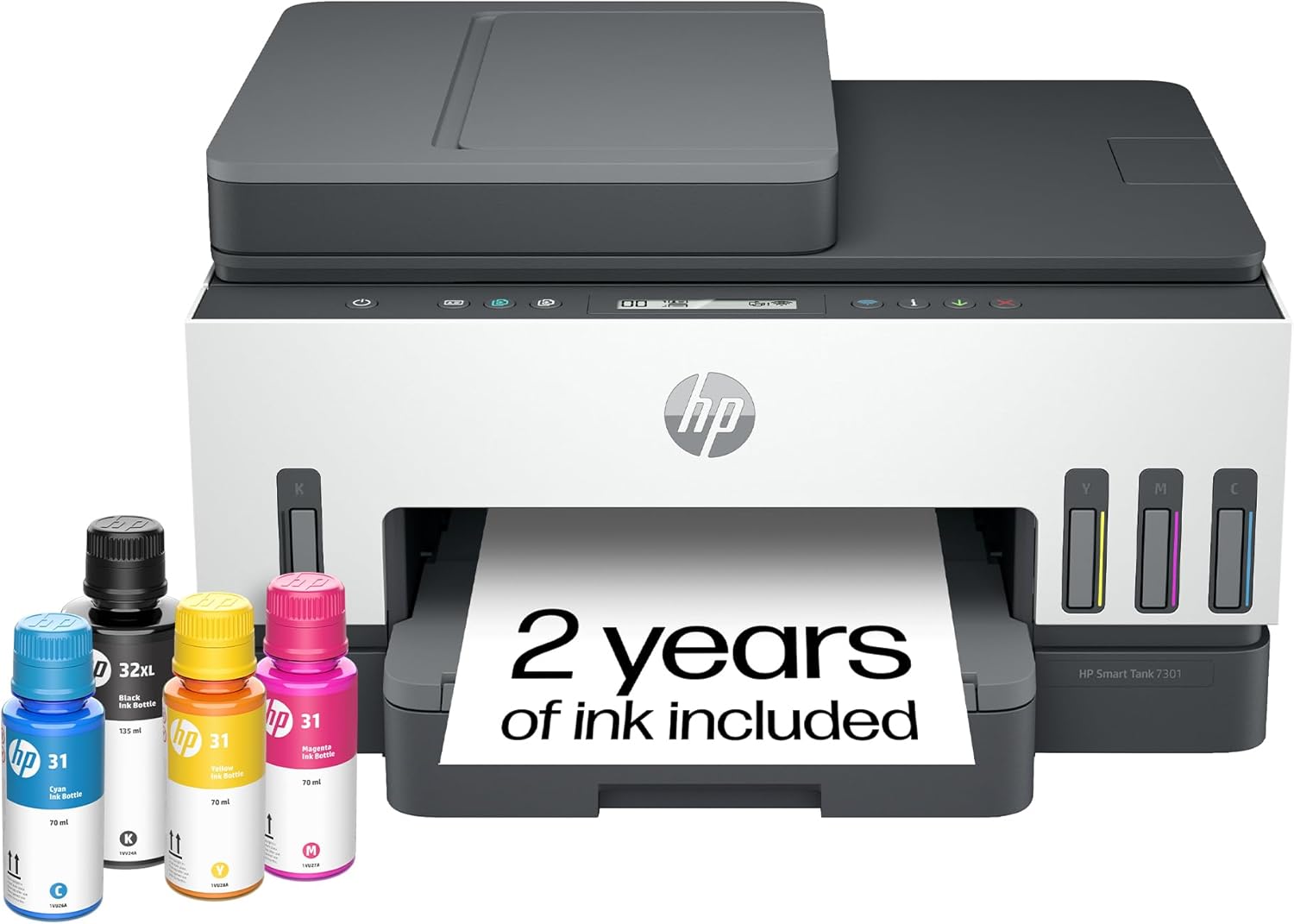 | 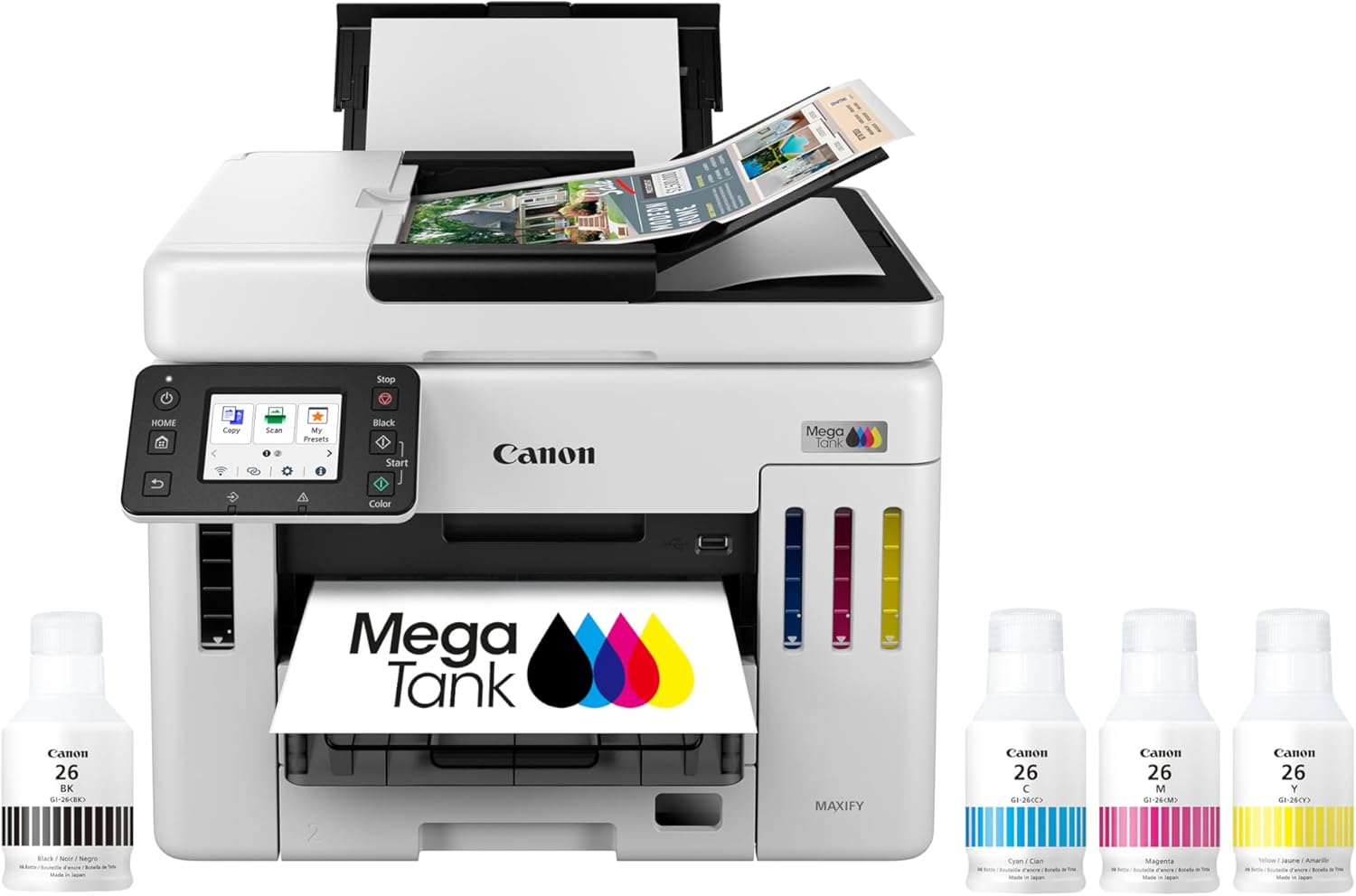 | 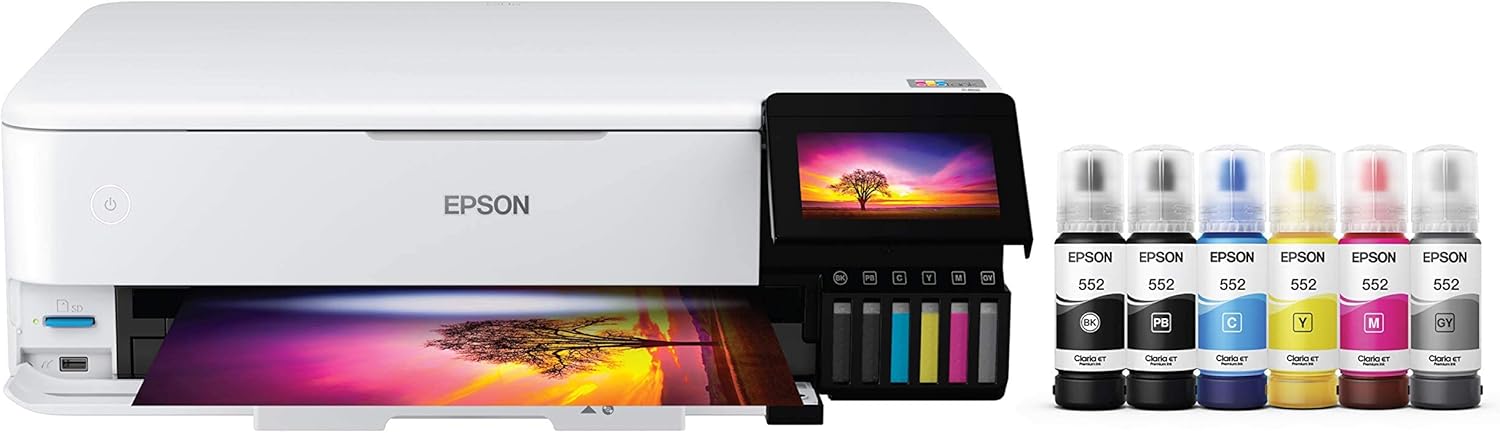 | 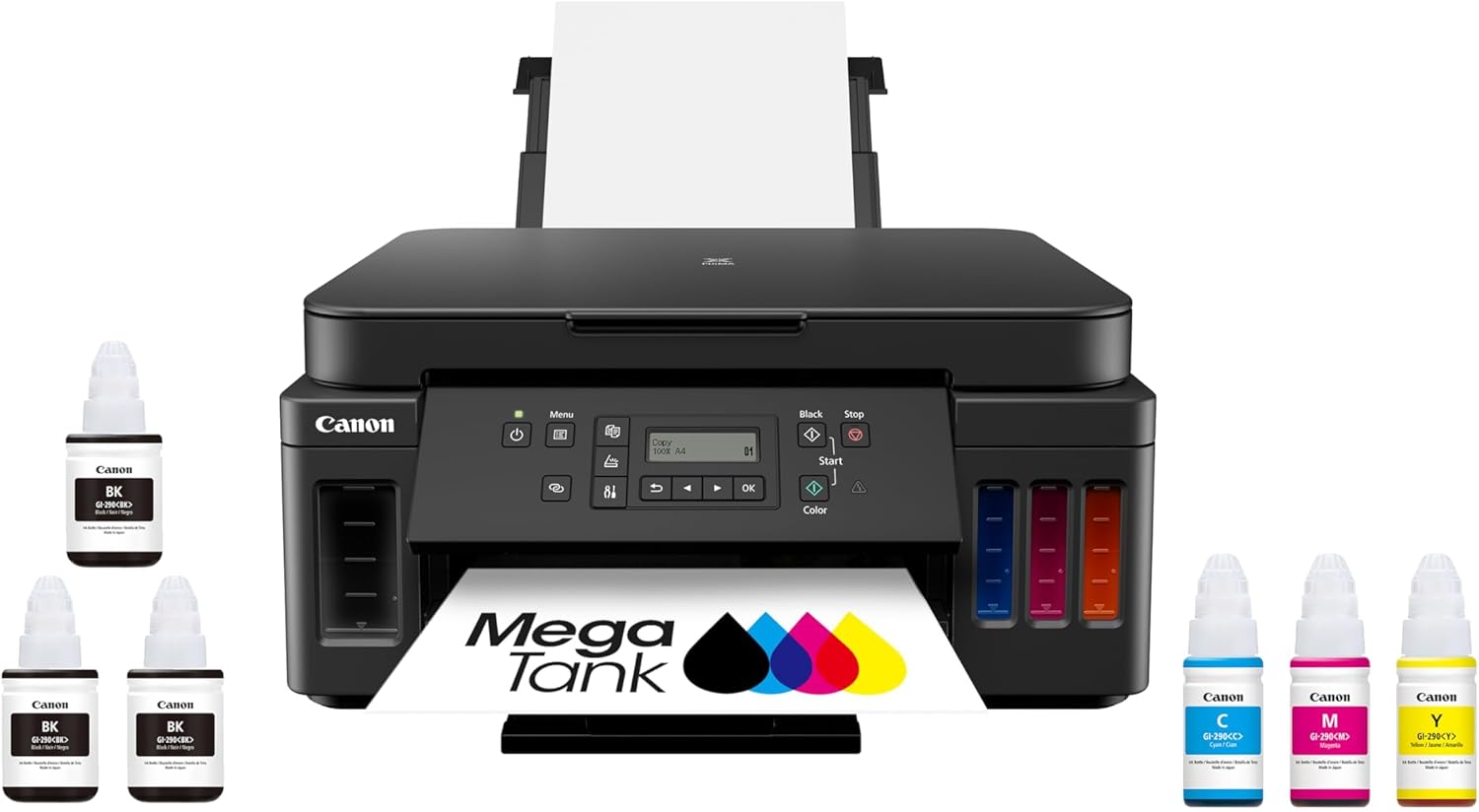 | 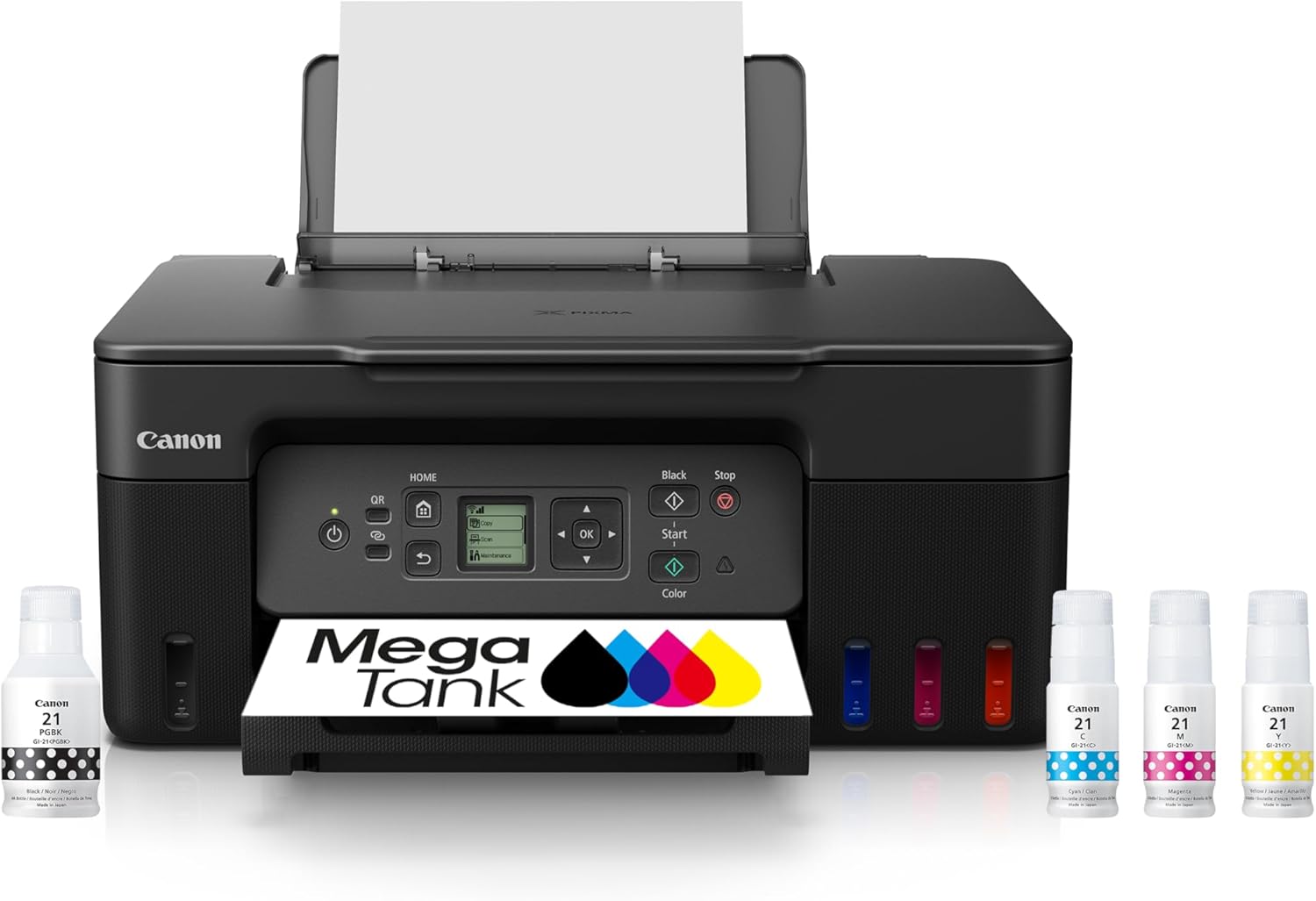 | |
Best for | Families + mixed printing | High-volume home office / small business | Photos, art prints, creative projects | High-yield home office printing | Tight budgets + basics |
Ink system | Refillable ink bottles | Refillable MegaTank | Refillable EcoTank (photo-focused) | Refillable MegaTank | Refillable MegaTank |
Prints a lot without refills | Yes (high-yield design) | Yes (built for volume) | Yes (low cost-per-print focus) | Yes (6,000 black / 7,700 color per set claim) | Yes (budget tank concept) |
Paper capacity vibe | Family-friendly | “I print stacks” (up to 600 sheets cited) | Creative-first, not an office tank | Big (350-sheet capacity) | Basic |
Duplex printing | Depends on config | Typically yes for this class | Yes (common ET-8550 use-case) | Yes (Canon lists duplex capability) | Varies by model/version |
Price |  | | | | |
What “borderless” actually means (the definition most guides skip)
Borderless printing means:
The printer lays ink all the way to the edge of the paper.
To guarantee no white edges, the printer typically prints past the edge of the paper slightly.
That extra printed area is called overspray or bleed.
And the moment you print past the edge, the printer has to compensate by:
- slightly enlarging the image, or
- cropping the edges, or
- both
That’s why your picture gets cut off.
The #1 reason printers crop borderless prints
Paper isn’t perfectly uniform
Even if the package says “8.5 x 11,” actual sheets can vary by tiny amounts.
Printers also feed paper with tiny shifts:
- left/right skew
- micro misalignment
- slight rotation
- feed tolerance
If the printer tried to print exactly to the edge without bleed, you’d often get:
- a thin white line on one side
- uneven borders
- an “almost borderless” look that feels cheap
So printers do the safe thing:
✅ Print slightly larger than the paper area
✅ Crop the edges to guarantee full coverage
Top 5 Picks:
- Best overall for most people: HP Smart Tank 7301 (balanced speed/features + easy home use).
- Best for home office volume: Canon MAXIFY GX7020 MegaTank (big paper capacity + business mindset).
- Best for photos + creative work: Epson EcoTank Photo ET-8550 (borderless 13×19 + standout photo quality).
- Best value all-in-one MegaTank: Canon PIXMA G7020 (high page yield + duplex + big capacity for the money).
- Best budget refillable tank: Canon MegaTank G3270 (cheap entry point that still gives you the ink-tank savings).
The hidden trade-off: borderless = coverage certainty, not perfect framing
Borderless printing is optimized for presentation, not precision.
It guarantees:
- no white borders
- full-bleed look
- clean edges
But it sacrifices:
- exact framing
- edge details
- predictable crop boundaries (unless you control the layout)
That’s why borderless is perfect for:
- snapshots
- casual photo prints
- flyers and simple designs
And risky for:
- photos where a face is close to the edge
- artwork with critical border details
- designs with thin frames or text near edges
Feature | |||||
|---|---|---|---|---|---|
| | | | | |
Best for | Families + mixed printing | High-volume home office / small business | Photos, art prints, creative projects | High-yield home office printing | Tight budgets + basics |
Ink system | Refillable ink bottles | Refillable MegaTank | Refillable EcoTank (photo-focused) | Refillable MegaTank | Refillable MegaTank |
Prints a lot without refills | Yes (high-yield design) | Yes (built for volume) | Yes (low cost-per-print focus) | Yes (6,000 black / 7,700 color per set claim) | Yes (budget tank concept) |
Paper capacity vibe | Family-friendly | “I print stacks” (up to 600 sheets cited) | Creative-first, not an office tank | Big (350-sheet capacity) | Basic |
Duplex printing | Depends on config | Typically yes for this class | Yes (common ET-8550 use-case) | Yes (Canon lists duplex capability) | Varies by model/version |
Price | | | | | |
Why the cropping amount feels random
Many users notice:
“Sometimes it crops a little. Sometimes it crops a lot.”
That happens because borderless printing can be influenced by:
1) Different paper feeds differently
Heavier paper, coated paper, and different finishes can feed with slightly different tolerances.
2) Different paper sizes have different aspect ratios
If the photo’s aspect ratio doesn’t match the paper exactly, cropping is unavoidable.
Example:
- A phone photo might be 4:3
- The paper might be closer to 3:2 or another ratio
Even without borderless, something has to give:
- crop, or
- white borders
3) “Auto fit” and “fill page” settings
Many print dialogs have settings like:
- “Fit”
- “Fill”
- “Scale to paper”
- “Borderless expansion”
“Fill” almost always crops. “Fit” almost always leaves borders.
The two types of cropping happening (most articles confuse these)
Cropping type #1: Aspect ratio mismatch
This happens when your photo’s shape doesn’t match the paper’s shape.
- The printer must either crop or add borders.
- Borderless printing chooses cropping.
Cropping type #2: Borderless bleed expansion
Even when aspect ratios match, borderless requires printing slightly outside the page area.
So the printer expands the image a bit, which also crops edges.
This is why borderless can crop even when you think the photo “matches.”
How to keep borderless prints from cutting off important details
If you want borderless prints that don’t chop faces, logos, or text, follow this rule:
Keep a “safe zone” near the edges
Treat the outer edge like a danger area.
Best practice:
- Keep important content away from the edge
- Leave breathing room around faces and text
- Avoid thin border frames unless you want them cropped
Designers call this “safe margin.” It’s the single easiest fix.
Borderless printing and photos: why faces get clipped
Photos often get cropped in the worst possible way:
- the top of someone’s head
- the edge of a shoulder
- text from a caption
That’s because automatic cropping centers the image and trims edges evenly, without understanding what matters in the photo.
Fix:
Before printing, crop manually in your photo editor so you decide what gets trimmed.
Borderless printing and artwork: why it can look “off”
If you print art or designs with:
- borders
- frames
- symmetrical patterns
Borderless can ruin the symmetry because:
- the printer may expand unevenly
- feed drift can create subtle shifts
If your design needs precision, borderless is often the wrong tool.
If you want zero cropping, here are your real options
Option 1: Print with a small border
This is the simplest and most reliable.
A thin white border:
- prevents bleed cropping
- preserves full image
- keeps framing accurate
Option 2: Add your own “fake borderless” bleed
This is what professionals do.
You design the layout with:
- extra background beyond the intended crop
- safe margins for important content
So even when the printer crops, it only trims unimportant background.
Option 3: Use “fit to page” instead of “fill”
This preserves the entire image, but you’ll get borders on at least two sides unless the photo matches the paper ratio perfectly.
Quick troubleshooting: Why do I still get a white border sometimes?
Even with borderless selected, you can see a thin line if:
- borderless is not supported for that paper type or size
- the printer driver is overriding settings
- paper feed shifts beyond tolerance
- “borderless expansion” is set too low
In other words: borderless isn’t always truly edge-to-edge in every situation.
FAQ: Borderless Printing Explained
Why does borderless printing crop my photo?
Because the printer prints past the paper edge (bleed) to prevent white lines, which requires enlarging and cropping.
Can you print borderless without cropping?
Not reliably. To avoid cropping, you usually need a small border or you need to design in a bleed/safe area.
Why does borderless printing cut off more on one side?
Paper feed tolerances and slight skew can shift the print area, causing uneven cropping.
How do I prevent faces from getting cut off?
Crop the photo manually before printing and keep a safe margin around important details.
Why do I get white borders even when borderless is selected?
Borderless may not be fully supported for that size/paper, or the feed alignment and driver settings may still leave small margins.
Final takeaway
Borderless printing crops your image because it’s designed to guarantee full coverage, not perfect framing.
Once you treat borderless like a “bleed” process, with safe margins and manual cropping when needed, you stop losing important edges and start getting consistent, professional-looking prints.
Other Interesting Articles
- Best Cheap Printers With Cheap Ink (2026): 5 Picks That Stay Affordable After Checkout
- Best Printers With Refillable Ink Tanks (2026): 5 Picks That Actually Save You Money
- Epson EcoTank Photo ET-8550 vs Canon imagePROGRAF PRO-300: Which Photo Printer is Best?
- Epson EcoTank Photo ET-8550 vs ET-15000: Beautiful Photos or Common Office Printer
- Epson EcoTank Photo ET-8550 vs Canon PIXMA PRO-200S: Price or Quality Photo Printing
- Epson EcoTank Photo ET-8550 vs ET-8500: One Major Difference You Need to Know
About RegalPrinter
RegalPrinter offers the best reviews for inkjet printers, laser printers, 3D printers, and other similar office machines that you use in your everyday life. We provide expert information that will ensure you are making the right decision whenever buying any of these machines. Our “Borderless Printing Explained” post will ensure you know which is right for you.