I'm a participant in the Amazon Services LLC Associates Program, an affiliate advertising program designed to provide a means for me to earn fees by linking to Amazon.com and affiliated sites.
Why do photos look washed out when printed? If your prints look washed out, dull, or “gray-ish” compared to your screen, you’re not crazy, and your printer probably isn’t broken.
In almost every case, washed-out prints come down to one of these three things:
- Paper mismatch (the #1 cause)
- Wrong print settings (especially paper type and quality)
- Color management issues (screen vs printer color expectations)
This guide gives you the real fix path, step by step, with all the information you’ll need.
Feature | |||||
|---|---|---|---|---|---|
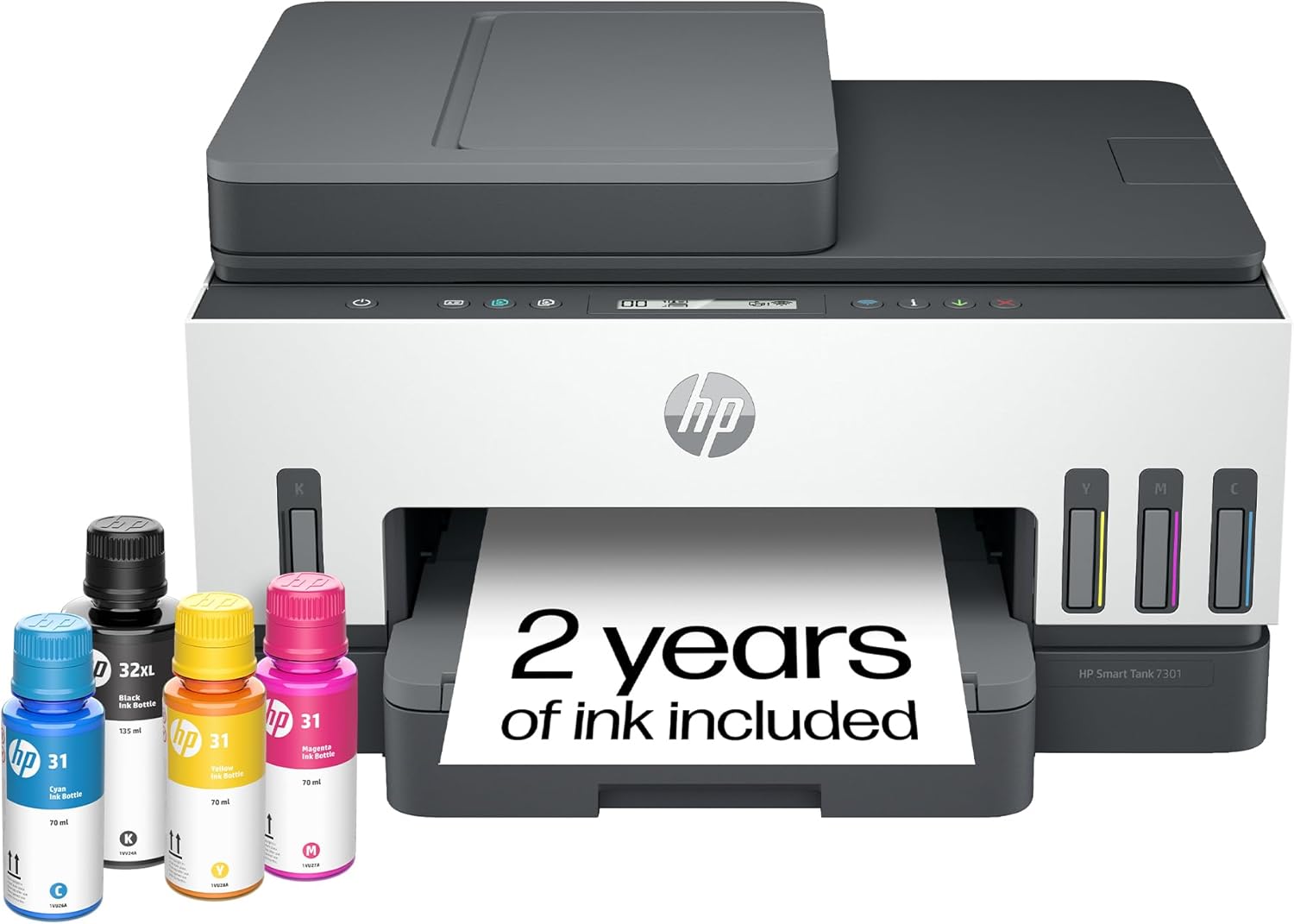 | 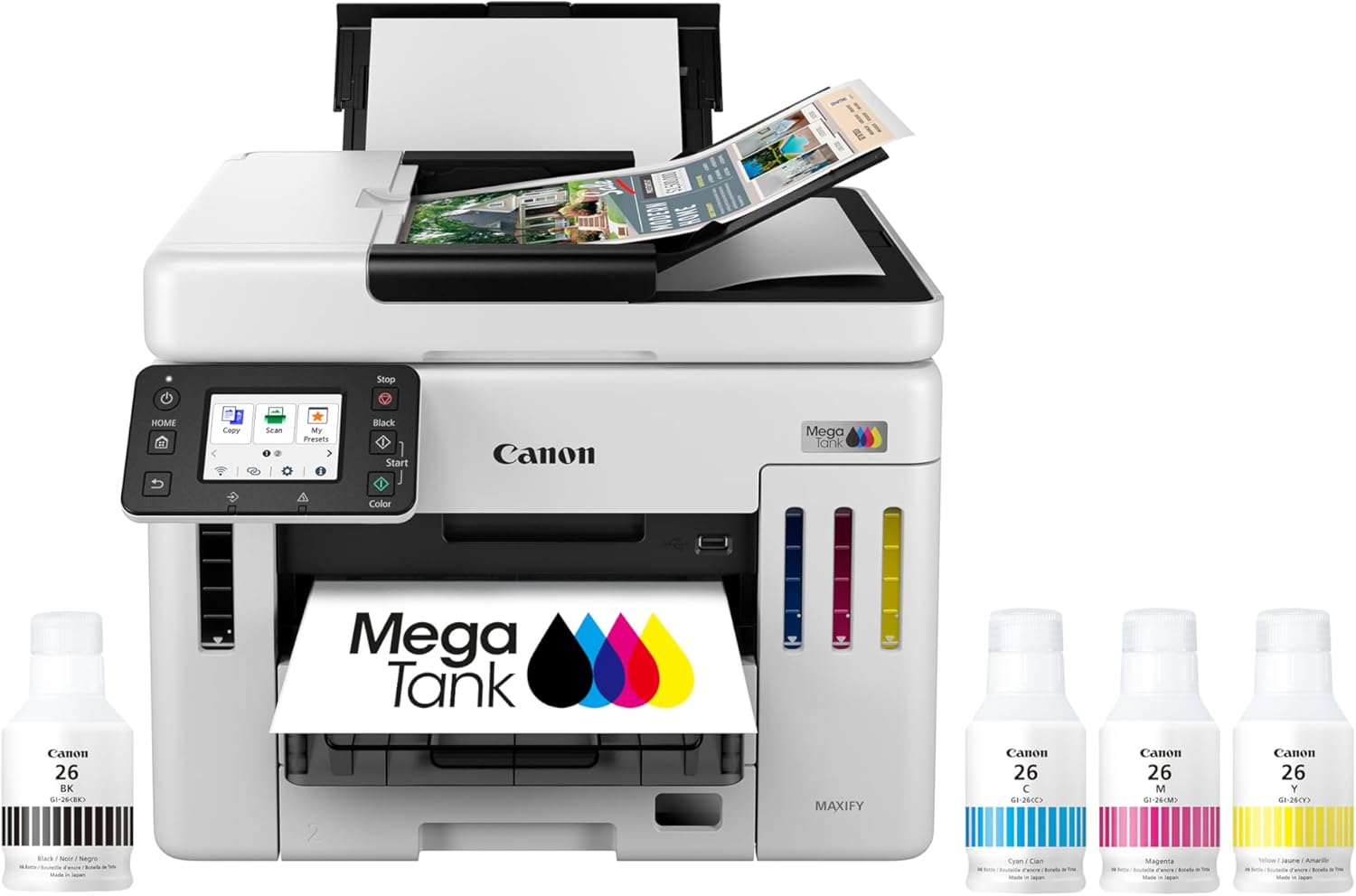 | 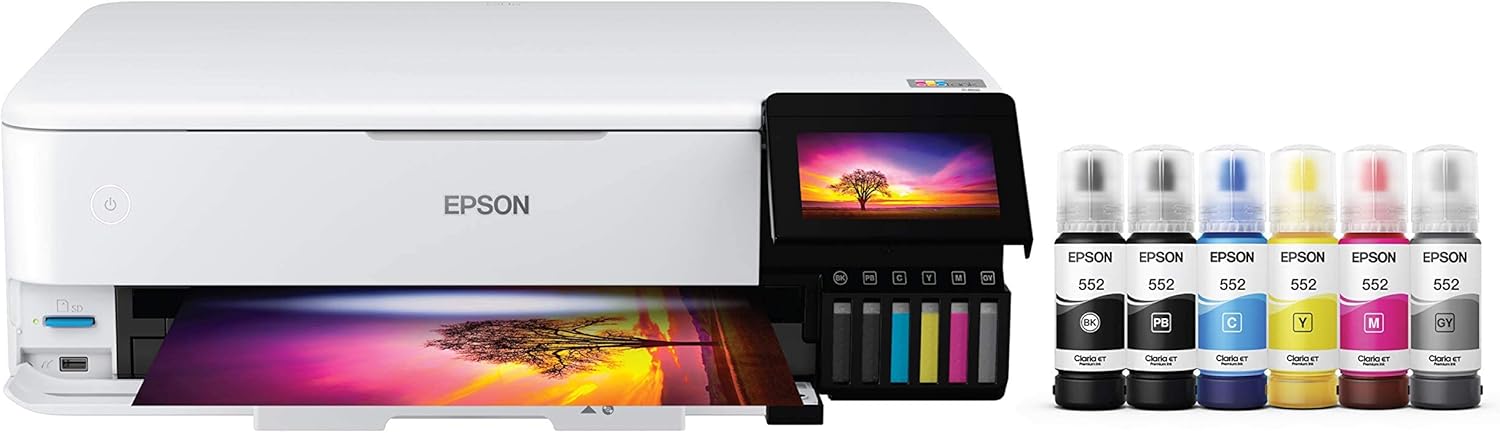 | 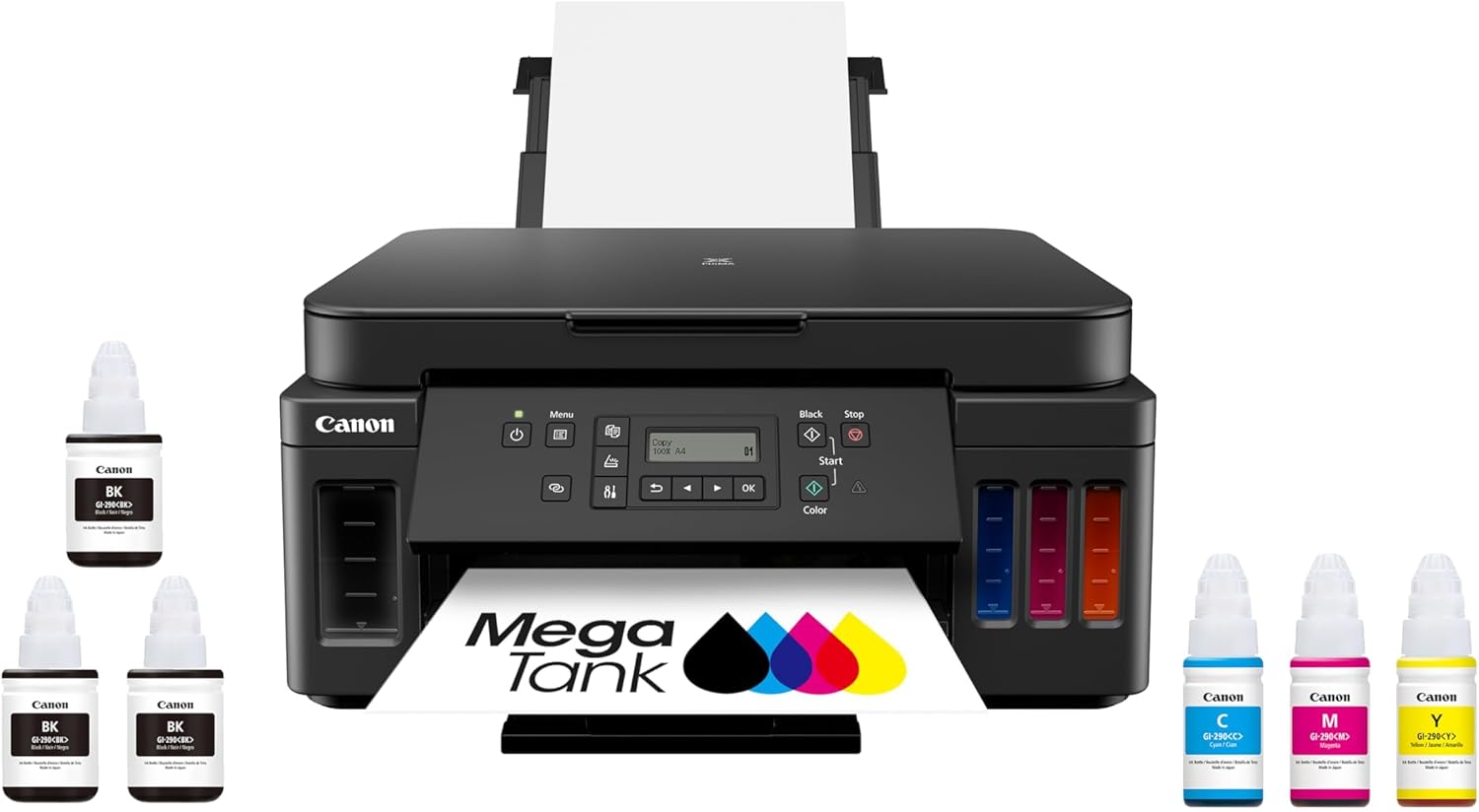 | 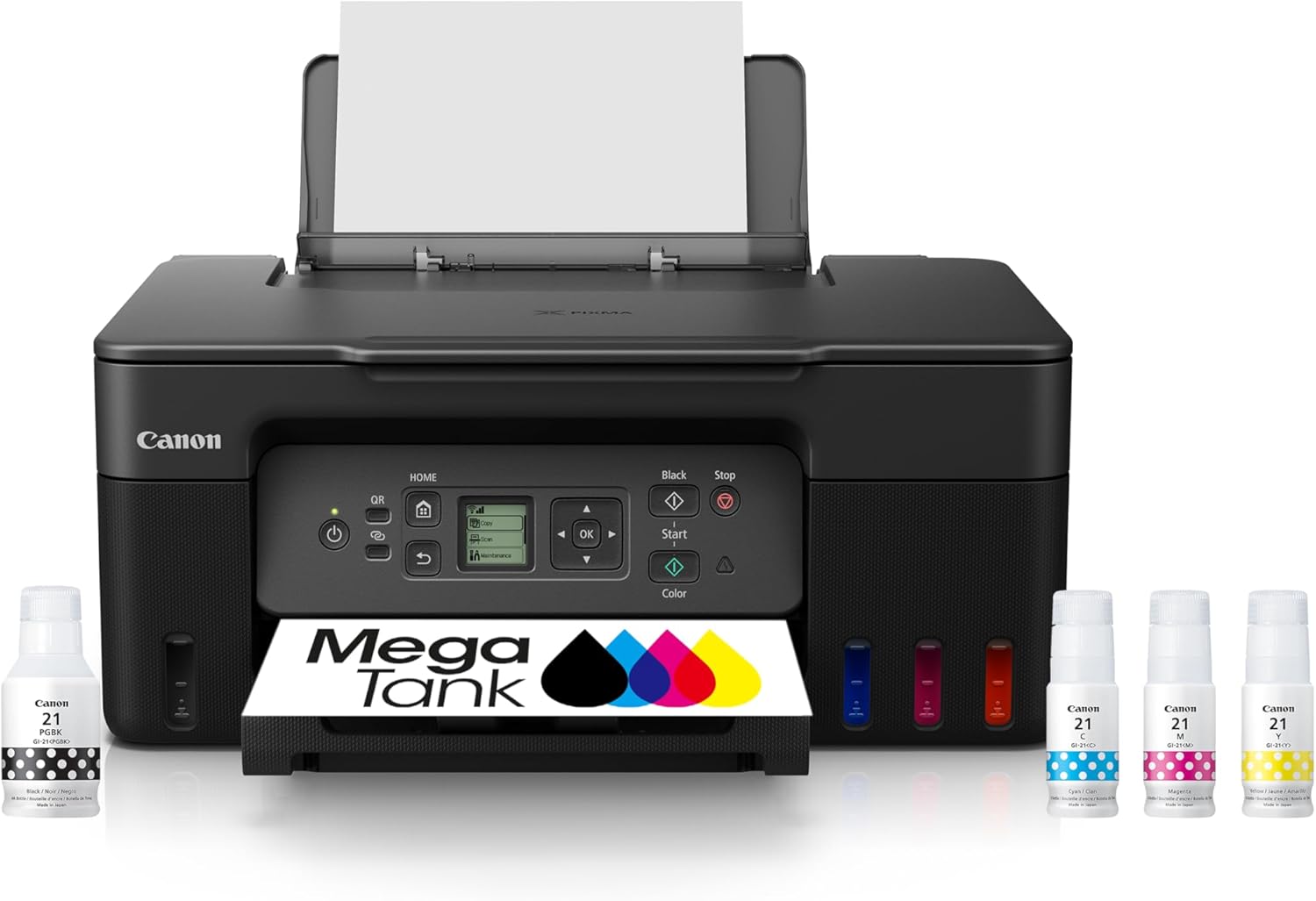 | |
Best for | Families + mixed printing | High-volume home office / small business | Photos, art prints, creative projects | High-yield home office printing | Tight budgets + basics |
Ink system | Refillable ink bottles | Refillable MegaTank | Refillable EcoTank (photo-focused) | Refillable MegaTank | Refillable MegaTank |
Prints a lot without refills | Yes (high-yield design) | Yes (built for volume) | Yes (low cost-per-print focus) | Yes (6,000 black / 7,700 color per set claim) | Yes (budget tank concept) |
Paper capacity vibe | Family-friendly | “I print stacks” (up to 600 sheets cited) | Creative-first, not an office tank | Big (350-sheet capacity) | Basic |
Duplex printing | Depends on config | Typically yes for this class | Yes (common ET-8550 use-case) | Yes (Canon lists duplex capability) | Varies by model/version |
Price |  | | | | |
The most common reason
Your printer can only print as well as your paper and settings allow.
If you print a photo on plain copy paper with “plain paper” settings, you’re basically asking ink to look like a glossy lab print. It can’t. Plain paper absorbs ink differently and can’t hold deep blacks or saturated color the same way.
So the goal isn’t “make the printer better.”
It’s match the paper and the settings to the kind of print you want.
The screen vs print reality check (why this happens at all)
Your screen:
- Is backlit (light shines through colors)
- Can show deeper perceived contrast
- Often runs brighter than you realize
Your print:
- Is reflected light (it relies on room lighting)
- Has a smaller color range than most screens
- Will look dull if your screen is too bright or oversaturated
Washed-out prints are often just your eyes seeing the gap between “glowing pixels” and “ink on paper.”
Top 5 Picks:
- Best overall for most people: HP Smart Tank 7301 (balanced speed/features + easy home use).
- Best for home office volume: Canon MAXIFY GX7020 MegaTank (big paper capacity + business mindset).
- Best for photos + creative work: Epson EcoTank Photo ET-8550 (borderless 13×19 + standout photo quality).
- Best value all-in-one MegaTank: Canon PIXMA G7020 (high page yield + duplex + big capacity for the money).
- Best budget refillable tank: Canon MegaTank G3270 (cheap entry point that still gives you the ink-tank savings).
The top 10 causes of washed-out prints (and the exact fixes)
1) You’re using the wrong paper (or the right paper with the wrong expectation)
Plain paper is designed for text, not photos. It:
- Soaks up ink (reduces saturation)
- Can’t hold high contrast
- Produces softer blacks and muted color
Fix
- Use photo paper for photo-like results
- If you must use plain paper, expect a flatter look and adjust (see #3 and #4)
2) Your printer is set to the wrong “paper type”
This is huge.
When you choose a paper type in the print dialog, you’re not just labeling the paper. You’re telling the printer:
- How much ink to lay down
- How fast to print
- Which color profile behavior to use
- How to handle drying and dot placement
If you print glossy paper while your printer thinks it’s plain paper, it will under-ink and look washed out.
Fix
- Match the paper type exactly (glossy, matte, photo, premium, etc.)
- If you’re unsure, choose the closest “photo” option rather than plain
Feature | |||||
|---|---|---|---|---|---|
| | | | | |
Best for | Families + mixed printing | High-volume home office / small business | Photos, art prints, creative projects | High-yield home office printing | Tight budgets + basics |
Ink system | Refillable ink bottles | Refillable MegaTank | Refillable EcoTank (photo-focused) | Refillable MegaTank | Refillable MegaTank |
Prints a lot without refills | Yes (high-yield design) | Yes (built for volume) | Yes (low cost-per-print focus) | Yes (6,000 black / 7,700 color per set claim) | Yes (budget tank concept) |
Paper capacity vibe | Family-friendly | “I print stacks” (up to 600 sheets cited) | Creative-first, not an office tank | Big (350-sheet capacity) | Basic |
Duplex printing | Depends on config | Typically yes for this class | Yes (common ET-8550 use-case) | Yes (Canon lists duplex capability) | Varies by model/version |
Price | | | | | |
3) You’re printing at “draft” or normal quality
Draft/fast modes reduce ink usage and detail. Great for documents. Terrible for photos.
Fix
- Print photos at “high” or “best” quality
- Use photo mode if available
- Avoid “economy” or “save ink” settings for photos
4) You’re printing the wrong file type or low-resolution image
If the file is:
- A compressed screenshot
- A tiny social media image
- A heavily edited phone export
…it may not contain enough data for a rich print.
Fix
- Use the highest-quality original photo
- Avoid re-saving JPEGs repeatedly
- For larger prints, make sure you have enough resolution
Rule of thumb
- 300 DPI is ideal for close-view photo prints
- Lower can still look good at a distance, but washed-out prints can happen if you’re stretching a small file too far
5) Your screen brightness is too high (the sneaky culprit)
Most displays are set too bright out of the box.
If your screen is too bright:
- You edit the photo darker than you realize
- The print comes out lighter/flat by comparison
Fix
- Lower your screen brightness before editing photos for print
- Don’t edit photos at max brightness
- If possible, use a consistent room lighting environment
Even a small brightness reduction can make your “washed out” problem disappear.
6) You’re double color-managing (or not color-managing at all)
Color management sounds technical, but the outcome is simple:
- If both your photo software and printer driver adjust color, you can get muted or incorrect color.
- If neither adjusts properly, you can also get flat results.
Fix path (simple version)
- Decide who controls color:
- Either your software manages color
- Or the printer driver manages color
- Don’t let both “enhance” or “correct” at the same time
This is one of the most common reasons prints look faded even on good paper.
7) Wrong color space (especially for photos edited for web)
Many images online are optimized for screens. When printed, they can look different.
Fix
- Export in a standard photo-friendly format
- Avoid extreme filters that look good on a phone but print poorly
- If your editor allows it, use a print-friendly workflow rather than “social media ready”
8) You’re using the wrong ink type for the job (dye vs pigment effect)
Ink type influences saturation and surface behavior.
- Dye inks often look more vibrant on glossy papers
- Pigment inks often excel on matte/fine-art papers and last longer
Fix
- Match paper finish to the look you want:
- Glossy/luster for punchy color
- Matte for softer, art-style tones
Even without changing anything else, paper finish alone can change perceived saturation.
9) The photo is underexposed or low-contrast to begin with
Some photos look great on screens because the screen boosts contrast naturally.
In print, low contrast looks… washed out.
Fix
- Add a small contrast increase
- Adjust “levels” or “curves” if available
- Boost blacks slightly (not shadows, true black point)
A tiny contrast and black-point adjustment often fixes “flat prints.”
10) Lighting makes your print look washed out (yes, your room matters)
A print viewed in dim warm lighting will look duller than one viewed in bright neutral lighting.
Fix
- View prints in bright, neutral light when judging color
- Don’t evaluate prints under a yellow lamp at night and assume the printer failed
This is a big reason people think prints are “wrong” when they’re actually fine.
The fastest troubleshooting checklist (do this in order)
If you want the quickest path to improvement, do this sequence:
- Switch to photo paper (or a higher-quality matte paper)
- In print settings, set the correct paper type
- Set print quality to High/Best
- Turn off any “Eco/Save Ink” features
- Make sure only one place controls color (software OR printer driver)
- Lower screen brightness before editing
- Add a slight contrast / black-point adjustment to the image
- Re-test the same photo with the new settings
This solves the vast majority of washed-out print complaints.
“But my prints look washed out only sometimes”: what that means
If it’s inconsistent, it usually points to:
- Different paper types being used
- Different software controlling color
- Different print quality settings
- Auto “enhancements” turning on/off
Consistency is the secret sauce: same paper + same settings = predictable prints.
FAQ: Why Do Photos Look Washed Out When Printed?
Why do printed photos look faded compared to the screen?
Screens are backlit and often too bright, while prints rely on reflected light. Paper and print settings also heavily affect saturation.
What paper should I use to stop washed-out prints?
Photo paper for photo-like results. Matte/fine-art paper for softer, art-style prints. Plain paper will almost always look flatter.
What print setting causes washed-out prints the most?
Wrong paper type selection. It changes ink density and how color is applied.
Should I turn on “photo enhancement” or “vivid color” settings?
Only if your color management is simple and you’re not already editing color elsewhere. Too many enhancements can cause muted or strange results.
Can low ink cause washed-out prints?
Yes, but it’s usually accompanied by banding, missing colors, or uneven tones, not just “flat” prints.
Final takeaway
Washed-out prints are almost always a mismatch problem, not a printer problem:
- wrong paper
- wrong paper-type setting
- low print quality
- confusing color management
- screen expectations that don’t match print reality
Fix the match, and your prints usually snap from “dull” to “wow” faster than you’d expect.
Other Interesting Articles
- Best Cheap Printers With Cheap Ink (2026): 5 Picks That Stay Affordable After Checkout
- Best Printers With Refillable Ink Tanks (2026): 5 Picks That Actually Save You Money
- Epson EcoTank Photo ET-8550 vs Canon imagePROGRAF PRO-300: Which Photo Printer is Best?
- Epson EcoTank Photo ET-8550 vs ET-15000: Beautiful Photos or Common Office Printer
- Epson EcoTank Photo ET-8550 vs Canon PIXMA PRO-200S: Price or Quality Photo Printing
- Epson EcoTank Photo ET-8550 vs ET-8500: One Major Difference You Need to Know
About RegalPrinter
RegalPrinter offers the best reviews for inkjet printers, laser printers, 3D printers, and other similar office machines that you use in your everyday life. We provide expert information that will ensure you are making the right decision whenever buying any of these machines. Our “Why Do Photos Look Washed Out When Printed?” post will ensure you know which is right for you.