I'm a participant in the Amazon Services LLC Associates Program, an affiliate advertising program designed to provide a means for me to earn fees by linking to Amazon.com and affiliated sites.
Inkjet smudging is one of those problems that feels mysterious… until you realize it usually comes down to drying + paper + settings.
Here’s the verdict up front:
- Most smudging is not a “bad printer.” It’s a mismatch between paper type and ink load (how much ink is being laid down).
- You can fix most smudging in 10 minutes by changing the right settings and using paper that matches your job.
- If smudging only happens on certain pages, it’s often humidity, coated paper issues, or too-heavy color coverage—not a permanent defect.
This guide shows you the fast diagnosis, then the real fixes that actually work.
Feature | |||||
|---|---|---|---|---|---|
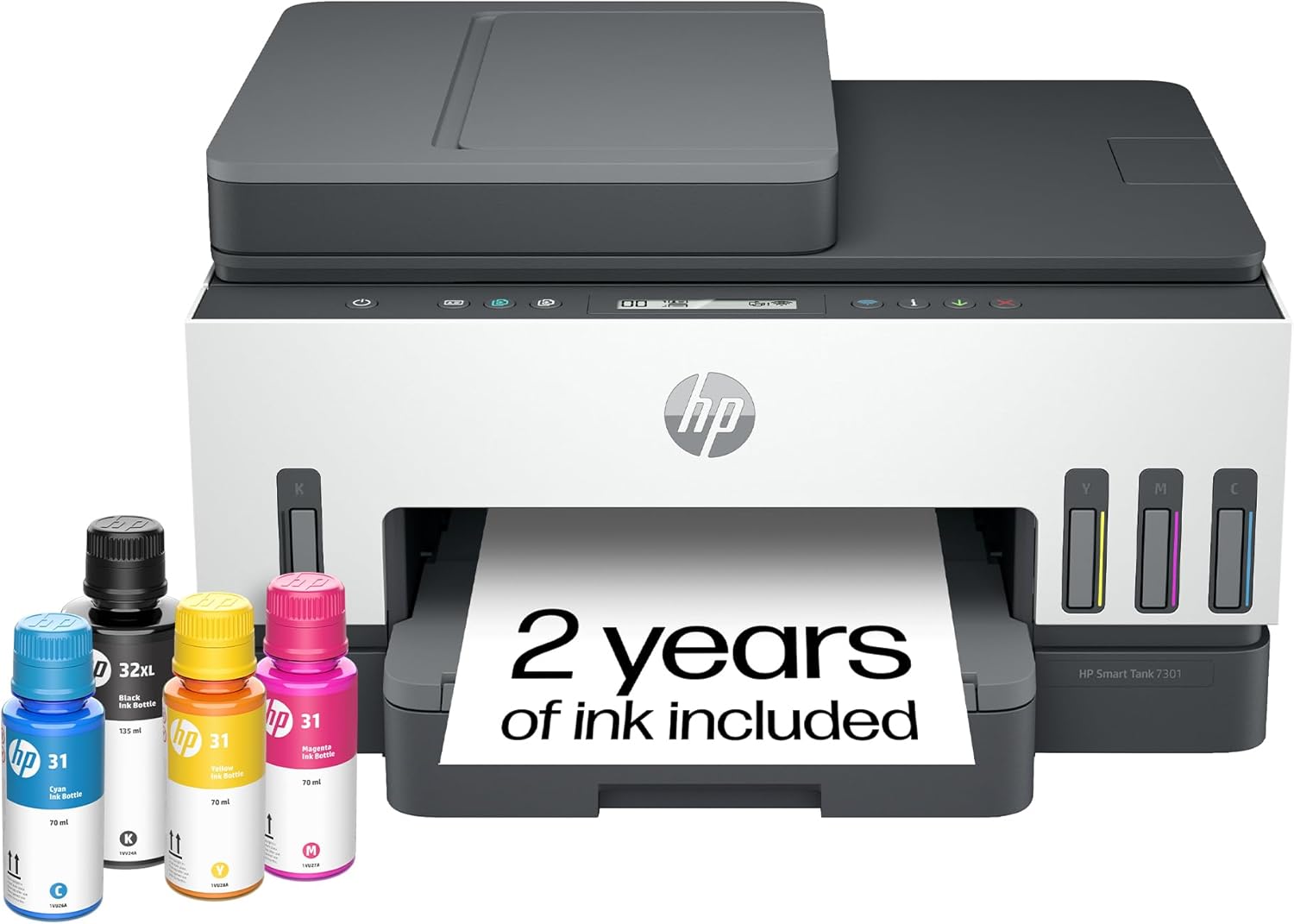 | 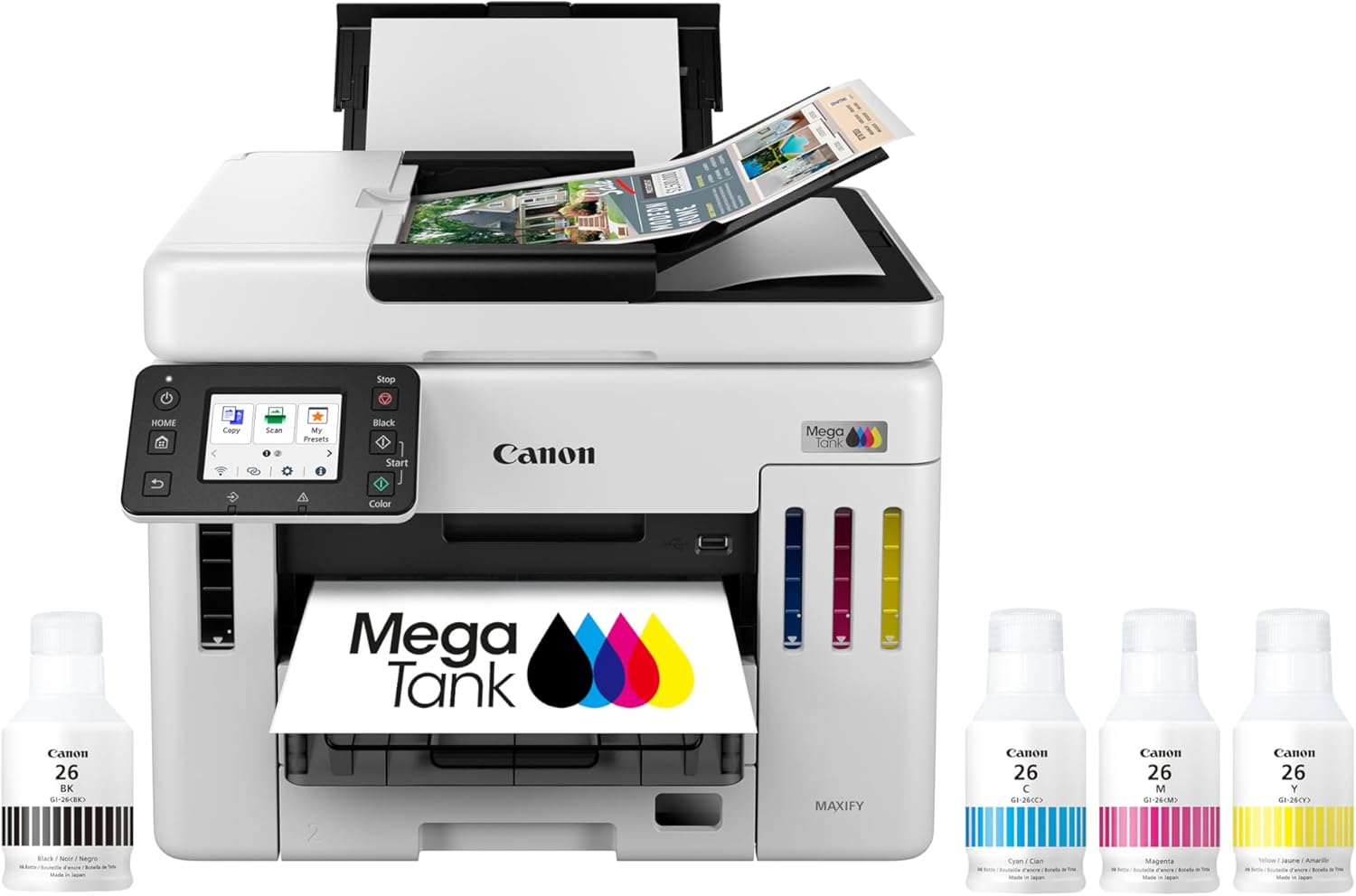 | 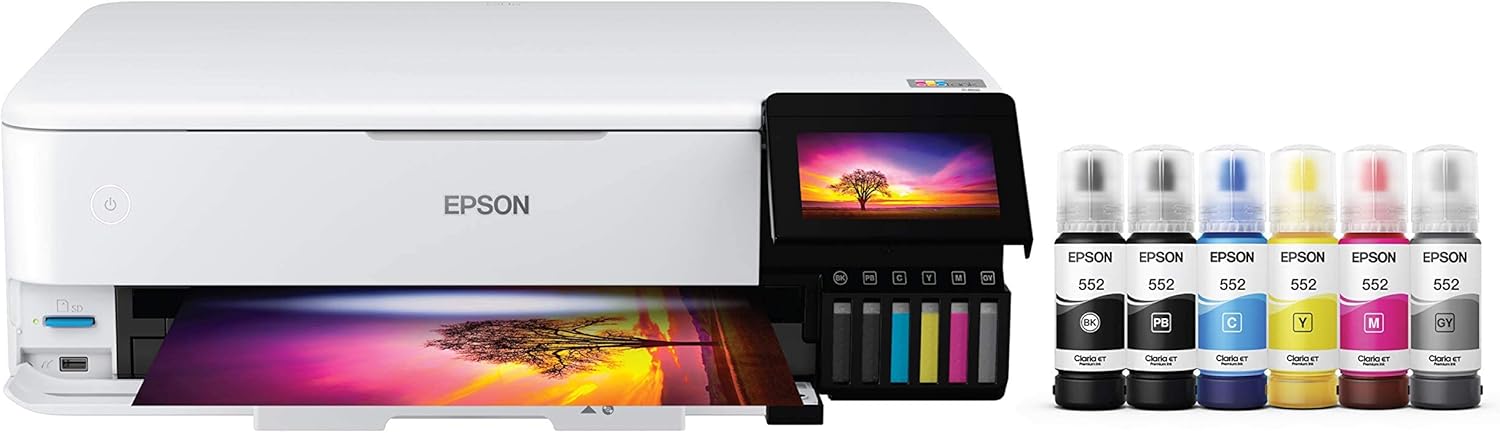 | 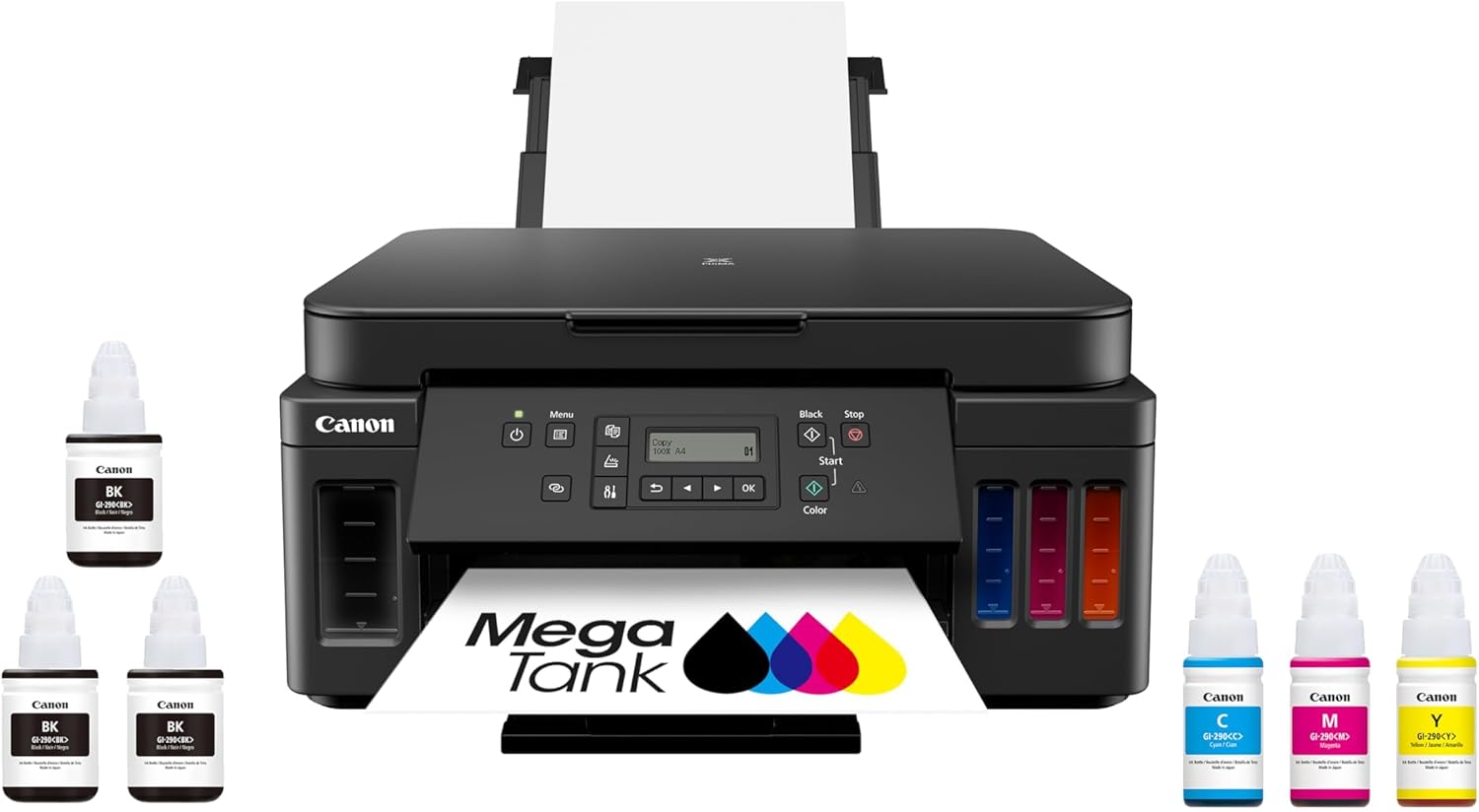 | 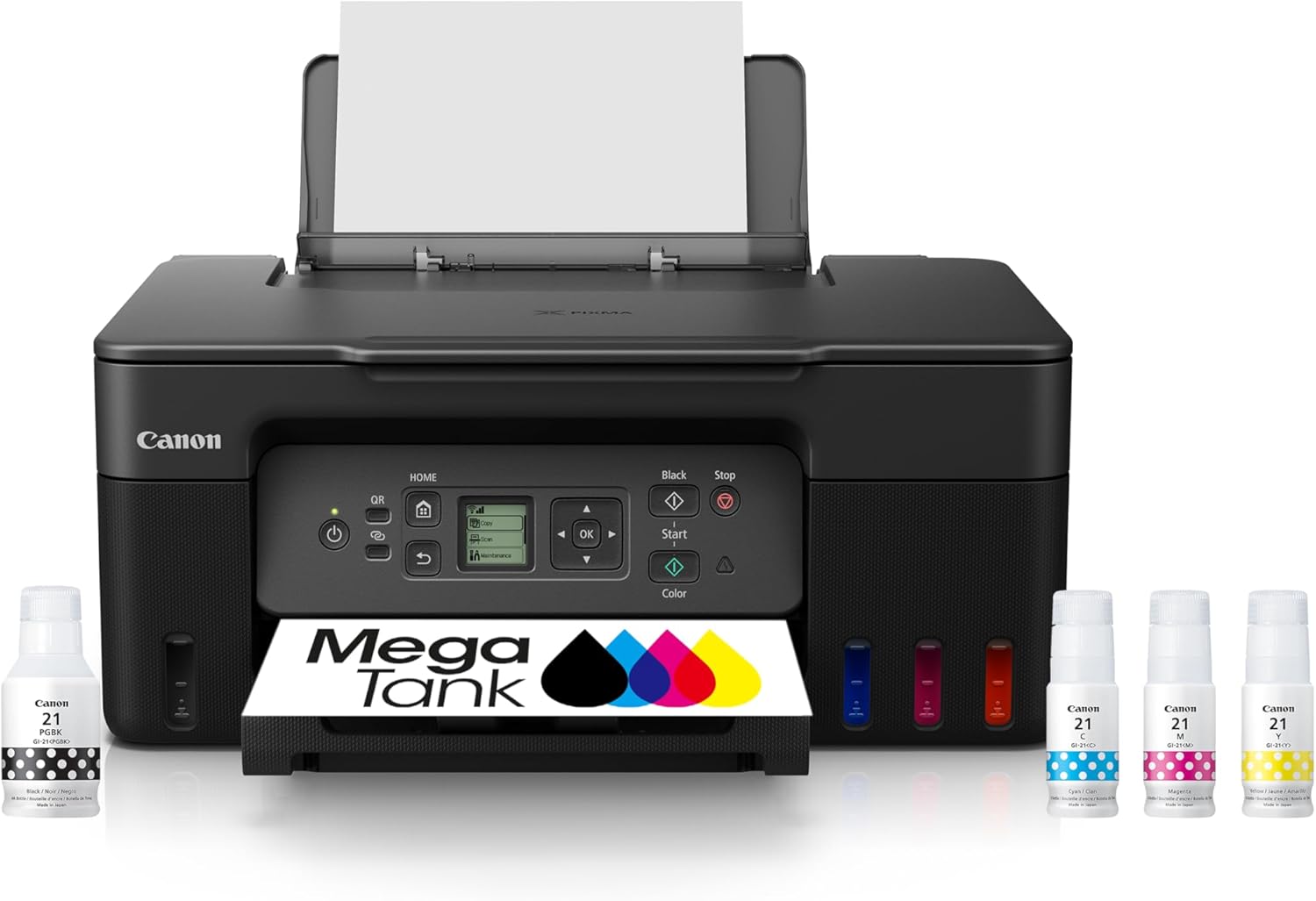 | |
Best for | Families + mixed printing | High-volume home office / small business | Photos, art prints, creative projects | High-yield home office printing | Tight budgets + basics |
Ink system | Refillable ink bottles | Refillable MegaTank | Refillable EcoTank (photo-focused) | Refillable MegaTank | Refillable MegaTank |
Prints a lot without refills | Yes (high-yield design) | Yes (built for volume) | Yes (low cost-per-print focus) | Yes (6,000 black / 7,700 color per set claim) | Yes (budget tank concept) |
Paper capacity vibe | Family-friendly | “I print stacks” (up to 600 sheets cited) | Creative-first, not an office tank | Big (350-sheet capacity) | Basic |
Duplex printing | Depends on config | Typically yes for this class | Yes (common ET-8550 use-case) | Yes (Canon lists duplex capability) | Varies by model/version |
Price |  | | | | |
Quick diagnosis: what kind of smudge are you seeing?
Different smudges have different causes. Identify yours first.
A) Smears when you touch the page right after printing
Most likely: ink hasn’t dried fast enough.
B) Smears hours later (or when stacked)
Most likely: paper is holding ink on the surface, or humidity is slowing drying.
C) Smudges only on high-color areas (photos, big graphics)
Most likely: too much ink density for the paper.
D) Smudges only on text, especially black
Most likely: wrong paper type setting, or black ink not bonding to paper well.
E) Random streaks or ink marks across the page
Most likely: paper path contamination (rollers) or excess ink buildup.
Once you know the pattern, the fix becomes obvious.
Top 5 Picks:
- Best overall for most people: HP Smart Tank 7301 (balanced speed/features + easy home use).
- Best for home office volume: Canon MAXIFY GX7020 MegaTank (big paper capacity + business mindset).
- Best for photos + creative work: Epson EcoTank Photo ET-8550 (borderless 13×19 + standout photo quality).
- Best value all-in-one MegaTank: Canon PIXMA G7020 (high page yield + duplex + big capacity for the money).
- Best budget refillable tank: Canon MegaTank G3270 (cheap entry point that still gives you the ink-tank savings).
Why inkjet smudging happens (the simple explanation)
Inkjet ink is liquid. It has to either:
- absorb into paper fibers, or
- bond to a coating, then dry
If ink stays wet too long, it smears.
The biggest causes are:
- Wrong paper for the job
- Wrong paper-type setting
- Too much ink laid down
- High humidity / poor airflow
- Handling too soon
- Paper path/roller issues
The fastest fixes (do these first)
Fix #1: Match the “paper type” setting to your actual paper
This is the #1 fix because it changes:
- ink amount
- drying behavior
- print speed
- color saturation
- how ink bonds to the paper
What to do
- In print settings, select the exact paper category you’re using:
- Plain paper
- Matte photo
- Glossy photo
- Premium presentation, etc.
Why it works
If the printer thinks you’re printing on glossy paper but you’re actually on plain paper (or vice versa), it will lay down the wrong ink load and smudging is almost guaranteed.
Feature | |||||
|---|---|---|---|---|---|
| | | | | |
Best for | Families + mixed printing | High-volume home office / small business | Photos, art prints, creative projects | High-yield home office printing | Tight budgets + basics |
Ink system | Refillable ink bottles | Refillable MegaTank | Refillable EcoTank (photo-focused) | Refillable MegaTank | Refillable MegaTank |
Prints a lot without refills | Yes (high-yield design) | Yes (built for volume) | Yes (low cost-per-print focus) | Yes (6,000 black / 7,700 color per set claim) | Yes (budget tank concept) |
Paper capacity vibe | Family-friendly | “I print stacks” (up to 600 sheets cited) | Creative-first, not an office tank | Big (350-sheet capacity) | Basic |
Duplex printing | Depends on config | Typically yes for this class | Yes (common ET-8550 use-case) | Yes (Canon lists duplex capability) | Varies by model/version |
Price | | | | | |
Fix #2: Increase drying time by slowing the print
Counterintuitive but true: slower can dry better.
What to do
- Turn off “draft” mode for photos (draft can cause odd ink behavior)
- For smudging on heavy graphics, try:
- normal quality instead of best, or
- high quality with “ink drying” options enabled (if available)
Why it works
Some modes push a lot of ink quickly. Slowing the pass can reduce pooling.
Fix #3: Use paper that can actually handle ink
Plain copy paper is a frequent culprit because it:
- absorbs unevenly
- feathers ink
- stays damp longer with heavy color
If you’re printing photos or heavy color
Use coated photo paper or presentation paper that’s meant to receive ink.
If you’re printing documents
Use a better-quality plain paper (slightly heavier) to reduce smearing and feathering.
Fix #4: Don’t stack prints immediately
If the ink is still curing, stacking is basically smudging on purpose.
What to do
- Lay prints flat for 10–30 minutes
- Use a clean surface
- Avoid touching the image area
This alone solves a huge percentage of “smudges hours later.”
Fix #5: Reduce ink density for problem prints
If smudging happens only on dark or colorful areas, your paper is overwhelmed.
What to do
- In print settings, reduce:
- “Color intensity” / “Saturation”
- “Ink density”
- Or print with a less aggressive “photo enhancement” setting
Why it works
Less ink = faster drying and less surface pooling.
The deeper fixes (when the easy fixes don’t solve it)
1) Humidity is slowing drying (this is more common than people think)
High humidity makes ink take longer to set.
Signs it’s humidity:
- smudging is worse on rainy days
- prints feel slightly tacky for longer
- smudging happens even after waiting a while
What to do
- Print in a drier room
- Run a dehumidifier if needed
- Increase airflow (a fan nearby can help)
- Let prints cure longer before handling
2) You’re using the wrong side of the paper (photo paper mistake)
Many coated papers have a printable side and a “back” side.
Signs:
- ink beads up
- smudges instantly
- colors look dull or streaky
Fix
- Confirm you’re printing on the coated side
- Check the paper packaging or feel the texture (coated side is often smoother)
3) The print is too saturated for the finish you chose
Some paper finishes show smudging more:
- glossy can stay “wet” longer with heavy blacks
- matte can scuff if the coating is soft
- cheap coated paper can smear under pressure
Fix
- Use a finish better suited to your image type
- Reduce ink density for heavy blacks and dark gradients
4) Paper path/roller contamination (the “mystery streak” problem)
If you see repeated smears or marks across multiple pages, your printer may be:
- dragging ink with rollers
- picking up wet ink from previous pages
- collecting paper dust or residue
What to do
- Print a few blank pages (plain paper) to “clean” the path
- Avoid touching paper surfaces before loading
- Keep paper stored clean and covered
If smudges appear at the same spot on every page, think rollers, not ink.
5) Your image is the issue (too dark, too much shadow detail)
This is common with photos edited on bright screens.
If your file is extremely dark, your printer lays down more ink in those areas, increasing smudge risk.
Fix
- Lift shadows slightly
- Reduce blacks a little
- Add contrast instead of deepening shadows
This keeps the print looking rich without drowning the paper in ink.
Smudging vs bleeding vs banding (don’t mix these up)
- Smudging = ink moves after printing (touch or pressure)
- Bleeding/feathering = ink spreads into paper fibers (fuzzy edges)
- Banding = gaps/lines from nozzle or alignment issues
If your problem is feathering, paper quality is usually the culprit.
If it’s banding, it’s usually a maintenance/alignment issue.
If it’s smudging, it’s almost always drying + ink load.
The “perfect settings” checklist for smudge-free printing
Use this as your baseline:
- ✅ Correct paper type selected
- ✅ Print quality appropriate for the job (not max ink for everything)
- ✅ Paper designed for inkjet printing
- ✅ Prints laid flat to dry (no stacking)
- ✅ Moderate humidity / decent airflow
- ✅ Hands off the printed surface until fully dry
If you do those six things, smudging becomes rare.
FAQ: Inkjet Smudging
Why is my inkjet printer smudging on paper?
Usually because the paper type setting is wrong, the paper can’t absorb the ink load, or the ink hasn’t dried yet.
Why do my prints smudge even after they dry?
Humidity, paper coating, stacking pressure, or too much ink density can cause delayed smudging.
How do I stop ink from smearing when printing photos?
Use proper photo paper, select the correct photo paper type setting, reduce ink density if needed, and let prints dry flat before handling.
Can low-quality paper cause smudging?
Yes. Paper not designed for inkjet ink can keep ink on the surface longer, increasing smear risk.
Does printing on glossy paper cause smudging?
It can, especially with heavy dark areas. Glossy coatings can slow drying, so settings and drying time matter.
Final takeaway
Inkjet smudging is almost always a paper + settings problem, not a printer problem.
If you:
- match paper type correctly,
- avoid over-inking,
- let prints dry properly,
- and control humidity a bit,
…you’ll fix the issue in most cases without replacing anything.
Other Interesting Articles
- Best Cheap Printers With Cheap Ink (2026): 5 Picks That Stay Affordable After Checkout
- Best Printers With Refillable Ink Tanks (2026): 5 Picks That Actually Save You Money
- Epson EcoTank Photo ET-8550 vs Canon imagePROGRAF PRO-300: Which Photo Printer is Best?
- Epson EcoTank Photo ET-8550 vs ET-15000: Beautiful Photos or Common Office Printer
- Epson EcoTank Photo ET-8550 vs Canon PIXMA PRO-200S: Price or Quality Photo Printing
- Epson EcoTank Photo ET-8550 vs ET-8500: One Major Difference You Need to Know
About RegalPrinter
RegalPrinter offers the best reviews for inkjet printers, laser printers, 3D printers, and other similar office machines that you use in your everyday life. We provide expert information that will ensure you are making the right decision whenever buying any of these machines. Our “Inkjet Smudging” post will ensure you know which is right for you.